Student records & admissions
Keep admission details, student profiles and guardian information together. Assign each student to the right class and section, and follow admission applications through their review stages.



A clearer school day
A parent asks about a fee balance. A teacher needs today’s class list. The office is preparing admission records. Keep that work connected with AWA Media’s school management software, covering students, attendance, fees and academic records in one system.
No signup needed. Explore the original interface with fictional data and selected working features.
For the people running your school
A school management system should make everyday records easier to find and maintain. The office needs student and admission details, teachers need class and attendance records, and accounts staff need a clear view of collections and balances.
Start with the work your team handles most often. Review those screens in the demo, then ask us to show how the wider modules would fit your school or academy.
Library, hostel and school shop workflows can be reviewed where they are relevant to your institution.
Explore the full system
Here is what the wider software covers. The public demo opens selected student, attendance and fee workflows; a guided demonstration lets you review the remaining modules. Your proposal confirms the final scope.
Keep admission details, student profiles and guardian information together. Assign each student to the right class and section, and follow admission applications through their review stages.
Set up your class structure, organise sections and maintain subject records. Give the office and teaching staff a shared reference for where each student belongs.
Choose a date and class roster, then mark students present, absent, late or on leave. Attendance reports help the office review the records when a teacher or parent asks.
Review monthly fee ledgers, collect partial or full payments, record discounts and see what remains due. Print a receipt with the payment details and student balance.
Organise examinations and tests, enter student marks and review results. Keep academic records linked to the students and classes they belong to.
Maintain teacher and staff records, organise subject assignments and plan class schedules. Staff leave records sit alongside the wider school administration modules.
Linked parent accounts can view their child’s attendance, fee balance, results and school notices. Parents see the information connected to their own children.
Publish announcements and manage notifications within the school system. Keep notices in a place staff and linked parents can return to when they need them.
Maintain book records, available copies and issue/return entries. Review due dates, overdue loans and fines through the library workflows.
Organise hostel rooms, bed capacity, occupancy and monthly rent records. This module can be reviewed if your school provides accommodation.
Review staff salary records, allowances and deductions, keep an expense register, and manage school shop products and stock. Include the modules your office actually needs.
Review school records through reporting screens and manage user roles for administration, teachers and accounts staff. Confirm the access each member of your team should have before setup.
Try it yourself
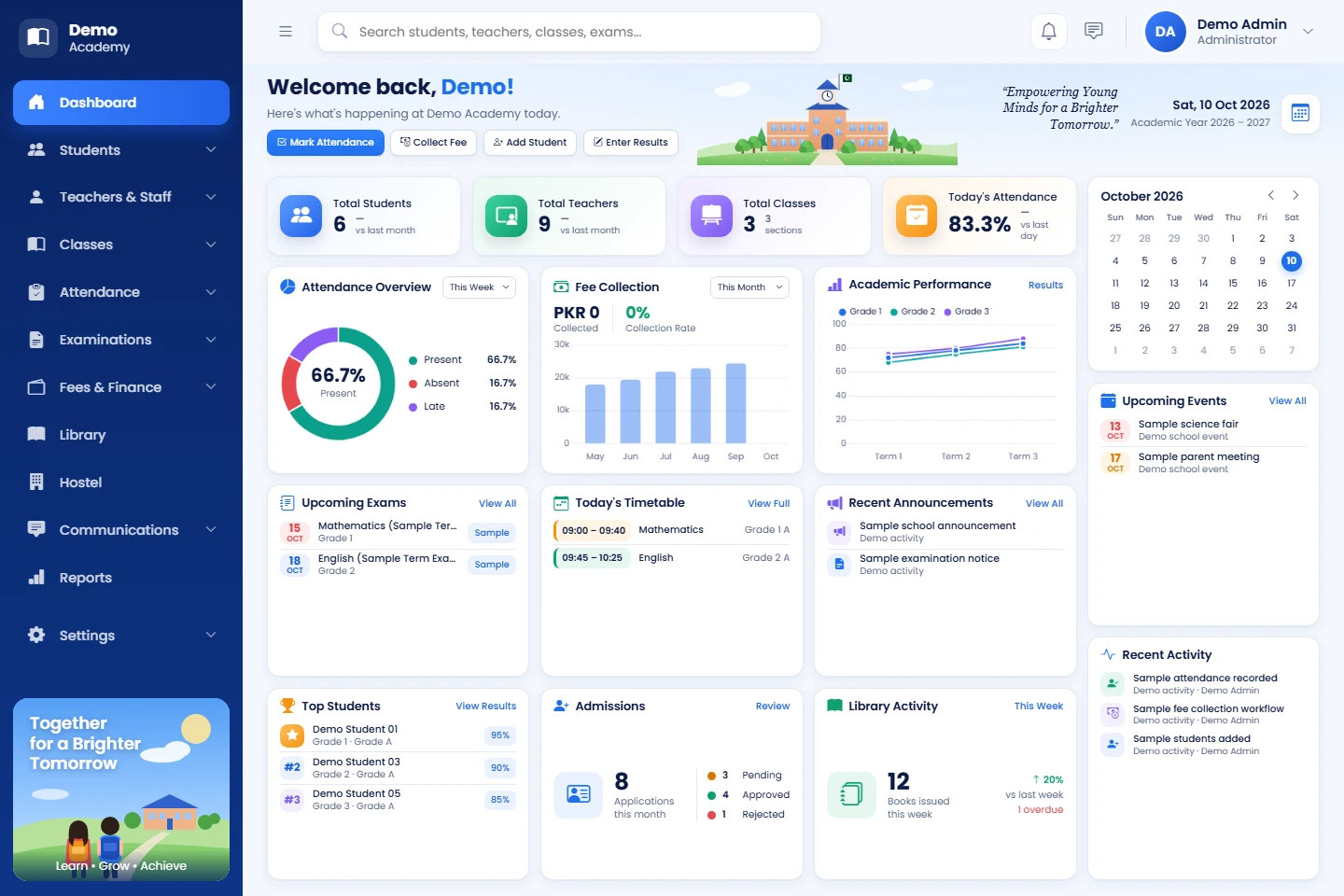
The online demo uses the school software’s original dashboard, menus, colours, fonts and charts. It opens with fictional records so you can explore the workflow before sharing your school’s requirements.
View the dashboard, switch between light and dark themes, and use the student search and class/section filters. Then try an admission entry, attendance record or sample fee payment.
Exams and results, teachers, parent access, library, hostel, wider reports and settings are available for a guided full demonstration. Their menu links show a message explaining the next step. Student photo uploads are disabled in the demo.
Use fictional details only. Demo entries are separate from your real school records. No real payments or school messages are processed. Your demo session resets after 30 minutes of inactivity.
Open Students, choose Add Student, enter a sample name and select a class and section. Save the entry and find it in the student register.
Choose a date, class and section. Mark students present, absent, late or on leave, then save. Reopen the roster to review your entries.
Review the current month’s fee ledger, select a student and enter a partial or full sample payment. Try a discount, check the remaining balance and print the demo receipt.
Open Reset demo and confirm the reset to restore the initial sample records. Each visitor has a separate demo session.
Before you decide
Bring the questions your office, teaching staff and accounts team would ask. A useful demonstration should show how your work would move through the system.
Tell us your approximate student count, classes and sections, fee structure and staff roles. Mention the records or reports you find hardest to manage today.
Use the public demo for the basics, then request a guided demonstration of the wider modules. Ask to see the tasks that matter to your team.
Agree the required modules, configuration and any custom work in a written proposal. Confirm data import, staff training, hosting, support and delivery timing before proceeding.
Preparing for setup
If your school uses spreadsheets, paper registers or another application, tell us what you want to bring across. We can review the source format and discuss the import work before confirming a quote.
Share an example of your fee structure, class timetable or required report. It is easier to assess a real workflow than a long list of feature names.
Integration compatibility, third-party costs and additional work need to be confirmed for your particular setup.
School software pricing in Pakistan
Our published school and academy subscription pricing is a PKR 50,000 one-time setup fee, followed by PKR 3,000–20,000 per month. The monthly charge depends on school size and requirements.
Custom software builds start at PKR 500,000. This option is worth discussing when you need workflows built around your institution. The scope, ownership and handover terms should be confirmed in your proposal.
Review our published software pricing options, then request a written quote for your school. These figures are starting guidance, not a fixed price for every combination of modules.
Questions before you start
The system covers student records and admissions, classes, attendance, fees, examinations and results, staff and timetables, parent access, notices, library, hostel, finance and reporting. Your proposal confirms which modules are included in your school’s setup.
You can explore the original dashboard, add fictional students, search the register, use class and section filters, save attendance, review the current month’s fee ledger, record sample payments and print demo receipts. Light/dark themes and sidebar navigation also work.
The public demo is limited to the dashboard, student register, attendance and sample fee workflows. Exams, results, teachers, parent access, library, hostel, wider reports and settings are reserved for a guided full demonstration. Their menu links explain how to request one.
No account is needed for the public demo. It starts with fictional students and uses a separate demo session for each visitor. It is not connected to a live school database and does not collect real payments or send school messages. Please enter fictional details only.
Use the Reset demo link on this page to open the reset screen, then confirm the reset. A Reset demo link also appears on the full-demonstration message pages inside the demo. Your sample records return to their starting state; they also reset after 30 minutes of inactivity.
Our published school and academy subscription pricing is PKR 50,000 for one-time setup, plus PKR 3,000–20,000 per month, depending on size and requirements. Custom software builds start at PKR 500,000. Request a written school-specific proposal to confirm your modules, setup and ongoing costs.
Share your classes, sections, fee rules, staff roles and required reports with our team. We review these requirements before confirming the configuration and any custom work. The agreed scope belongs in your proposal.
Tell us where your records are kept and what format they use, such as a spreadsheet or another school system. We can review the data and discuss an import scope. Data cleaning, manual entry and migration work need to be agreed before a quote is finalised.
No. Demo fee entries are sample records; no money moves and no messages are sent. If your school needs a payment gateway, SMS service or biometric device integration, raise it during the requirements review so compatibility, third-party charges and custom work can be assessed.
Share your school name, approximate student count, classes and sections, the modules you need, and how you currently manage records. Mention your staff access needs, existing data and any integrations. This helps us focus the demonstration on your daily work and prepare a relevant proposal.
Try a student entry, attendance record and fee receipt in the demo. When you are ready, tell AWA Media how your school works so we can focus a full demonstration on the right modules.